I hereby excuse myself of all responsibilities for the posting of this guide on the use of Truecrypt. Anyone following this guide on the use of Truecrypt are liable for the use at their own risk. By following any steps of this guide, you (the reader) have willingly bound yourself to this Disclaimer and have excused me of any responsibilities on this guide's procedures and recommendation on the use of Truecrypt or any other digital components being used together with the use of Truecrypt and you shall be solely responsible for the use of Truecrypt and any other digital components being used together with the use of Truecrypt.
Summary:
This guide on the basic usage of Truecrypt teaches beginners the basic procedures and steps in creating and utilizing their very own Truecrypt secure volume to store sensitive secrets securely away from prying eyes.
Basic Information:
Truecrypt does not encrypt files individually but rather creates a secure volume to store files within that secure volume. Think of a secure volume as a secure folder or a secure virtual device (it is considered a virtual hard disk volume by the Operating System) where you store your collection of data files in a secure collection called a secure volume.
Operational Security:
When you are using Truecrypt, please observe these following guides for your own personal safety due to the fact that if you misuse Truecrypt without proper Operational Security (OpSec) in mind, you are likely going to have someone come along and compromise your secure volumes.
- Check for traps or tappings connecting between your keyboard and mouse wires or Bluetooth connectors to the CPU if you are using a Desktop or a Server. If your connecting wires or USB Bluetooth dongle between the CPU and the connecting wires of Bluetooth dongles have suspicious looking adapters that have not been installed by you, take precaution and discontinue and investigate until you feel safe.
- Secure volume file names should not have meaning to it. One bad example of a secure volume file name is 'mysecrets.tc'. You are as good as broadcasting to anyone who intrudes or shares the computer that the file is something of a sensitive nature.
- Secrecy of secure volume master passwords are paramount. You must find a way to secure the password without leaking or sharing them. Sharing of passwords are strictly not allowed regardless of scenarios. We will cover on sharing Truecrypt volume on a later chapter but for now, do not share anything. Writing down the password, sealing it in an envelope and quickly locking it up in a safe is one of the most common methods of storing your password away. Never carry the written down passwords anywhere and carelessly leave them lying around as these secret passwords are the key to your sensitive data. You are better off storing your master secret password in a Password Manager (Passwordsafe) or simply attempt to remember it by choosing a passphrase that you can easily recall.
- Do not unnecessarily reveal the existence of your secure volumes.
- Dismount your volumes when you have done all your work and quit the Truecrypt program if possible.
- If you have any sensitive files you want to create, please try to create them within the secure volume as it provides more security than to create a file outside the secure volume on your Desktop and later copying it into the secure volume. Computer forensics analysis maybe able to recover files created on your Desktop if you create the files on the Desktop before moving it into the secure volume.
- It is best if you limit the sizes of your secure volumes (recommended between 1 to 5 MB per volume) as huge file sizes attracts attention. Having multiple small volumes work better but can be confusing to organize them so you need some form of unrecognizable naming convention that seems random and only you know the meaning of the secure volume names. If you want to have one big central secure volume, you must take all your attention required to secure and keep it protected (not saying that smaller volumes means you can be careless).
- Download Truecrypt (http://www.truecrypt.org/downloads).


- Run the installer and click 'Yes' to all.
- Click on the Truecrypt program.

- Create a new volume to store your sensitive files by clicking on the 'Create Volume' button. A 'Truecrypt Volume Creation Wizard' window should appear.

- Select the default 'Create an encrypted file container' and click 'Next >' to continue.
- You will be asked to choose your volume type and you should select 'Standard Truecrypt Volume' for now.
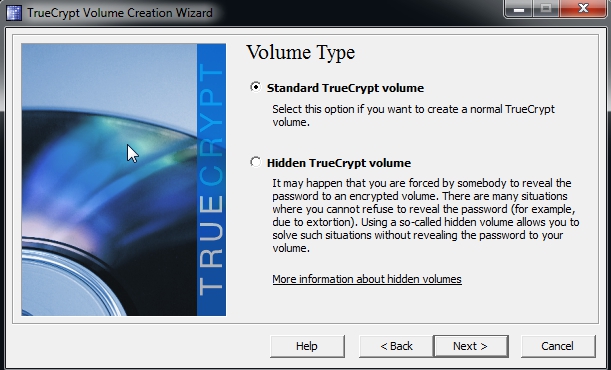
- Type or select the file you want to use as your Truecrypt volume. I would suggest you to create the secure volume file in the 'C:\' drive location first and then copy it to wherever you want. Make sure you copy and SHIFT+DELETE the file in the 'C:\' drive once you have copied it out. The filename should be meaningless to anyone except probably you. If you want a truely secure file name that no one knows the meaning including yourself, you can use a random generator (http://www.random.org/strings/) to generate a random file name.

- Click 'Next >' and you would be shown an 'Encryption Options' to select your encryption algorithm. Select 'Serpent-Twofish-AES' for your 'Encryption Algorithm' and select 'RIPEMD-160' for your 'Hash Algorithm'. Click 'Next >' to continue.

- Select on a volume size you want for your volume. Your storage capacity would be slightly smaller than the volume size you have selected because you need to store other file information inside the encrypted volume. Click 'Next >' to continue.

- Select a volume password for encrypting your volume. Please choose your passwords wisely and make sure you take utmost care of your passwords. Click 'Next >' to continue. If you are warned that you are using a short password, in the screen below, you can click 'Yes' to continue to use the password you selected or click 'No' to select another password that is much longer. Do NOT panic when you are warned of the short password as shown in the picture below. You are NOT FORCED to use a long password. You may use a short password as long as you choose it carefully ! Stick to common sense like not using a commonly known password and mix the letters and numbers in your passwords and do not re-use old passwords. The stronger your password (more letters, numbers, special characters and longer passwords) the harder an adversary needs to work to attempt to crack your passwords.


- You would be asked to choose a 'Volume Format'. We shall use the default volume format (FAT format) so do not touch the format unless you know what you are doing. Start moving your mouse randomly across the window to generate some random secrets as part of the encryption mechanism. You will see the 'Random Pool' changing all the time as you move your mouse randomly. Once you are satisfied, click 'Next >'.

- You will be notified that your volume has been created. Click 'Yes' and 'Exit' to finish the creation.


- Once you are done, a file would be created as your Truecrypt volume to store your sensitive files. If you use a text editor to open the file, it should look like a bunch of random unreadable binary. You should avoid opening the file by the means of a text editor to prevent accidental corruption of the binary. You may want to backup this file as often as possible. Below is a created file shown on the Desktop and also a small snapshot of the random binaries when carefully opened using a text editor.


- To open the Truecrypt volume for use (it is called mounting a volume), Click on a Drive to allocate a Drive (E:\, F:\ ...) to mount the volume onto. Click on 'Select File' and select your Truecrypt volume file to mount for use. Click 'Mount' to mount the selected file on to the selected Drive. In this picture below I have selected 'H:' drive for use. You may select any free drive to use. Please ensure that the 'Never save history' option is ticked to prevent saving a history of visited volumes to prevent any knowledge of your activities leaked.

- You will be prompted to enter your password and when you have entered your password click on 'OK' to continue.

- Once you have successfully mounted the volume, you will see your volume mounted next to your 'Drive' with the volume file size, encryption algorithm used and other volume information.

- Go to the mounted volume (if you select 'H:', that means you need to navigate to 'H:' drive on your computer using your file manager/browser). You may start creating and adding files to be secured within the volume. If you are going to be away from computer, please close all the text editors or document editors of the sensitive files you are currently editing or using and click on the 'Dismount All' to dismount all volumes. It is insecure to leave your volume mounted while you are away from your computer even for a short moment as anyone can walk to your seat and take over your computer and do something to your secure volume (making it insecure because you left it mounted and unattended). Dismounting the volume means that the files and volumes would return back to an encrypted state and requires password login again to decrypt the volume and access the sensitive files. When you dismount it should not exist on your list of Drives and volumes anymore as shown in the screenshot below.

Some files created
 |
| Dismounted all volumes |